Quick Answer
Strong Google Workspace security requires more than enabling MFA and restricting external sharing. Admins need visibility across identity, OAuth access, sensitive data, Drive permissions, browser activity, devices, and user lifecycle changes.
A strong security program should help you answer three questions continuously:
Who has access? What are they doing? And can you respond when something changes?
Last updated: October 2026
These 10 Google Workspace security best practices provide a practical framework for reviewing those risks across your environment.
1. Audit External Google Drive Access
Drive permissions change constantly. Files are shared externally, contractors gain access, links are created, and externally owned files enter your environment.
Regularly review files shared outside your organization, external users with access, public links, sensitive files with broad permissions, and old sharing relationships that are no longer required.
Don’t focus only on new sharing. Existing access can remain long after the original business need has disappeared.
With GAT+, admins can audit Drive permissions and external sharing across users, groups, and organizational units.
2. Strengthen Gmail Security
Email remains one of the main routes attackers use to reach employees. Google provides extensive protection against spam, phishing, spoofing, and malicious content, but admins still need visibility when something gets through.
Regularly review automatic forwarding and filters, suspicious messages, email authentication, and sensitive information leaving through Gmail.
GAT+ can alert admins when external forwarding is enabled, a new Gmail filter is created, or email delegation is set.
3. Protect Sensitive Data with DLP
Data loss prevention starts with knowing where sensitive information lives and how people can access or share it. In Google Workspace, that means looking beyond individual files to how data moves through Drive, Gmail, Chat, and the browser.
Your DLP strategy should cover:
- – Sensitive data. Identify files containing PII, financial records, intellectual property, or other regulated data.
- – External sharing. Monitor when sensitive files become available outside your organization.
- – Permissions. Review who can access sensitive information and whether that access is still appropriate.
- – User activity. Look for unusual downloads, sharing changes, or other behavior involving sensitive information.
- – Alerts and response. Define what happens when activity crosses your risk threshold.
Google’s native DLP rules apply to Drive, and availability of features depends on your Workspace edition. Google keeps adding data protection controls, so review your policies regularly instead of treating DLP as a one-time setup.
For a step-by-step approach, see our DLP framework for Google Admins.
GAT+ adds domain-wide auditing, reporting, and alerts around sensitive data and sharing activity. GAT Shield extends DLP to the browser, with custom RegEx rules that detect and block sensitive data transfers in Chrome.
4. Move Toward Phishing-Resistant Authentication
MFA remains one of the strongest protections against account takeover, but not every method provides the same protection.
SMS and one-time authentication codes can still be targeted through phishing or SIM-swap attacks. Where possible, prioritize phishing-resistant methods such as passkeys and hardware security keys, particularly for admins, executives, finance teams, and other high-risk users.
MFA is still essential. The method matters.
5. Audit OAuth Apps and Third-Party Access
Users don’t need to share their passwords for third-party applications to gain access to Google Workspace data. OAuth permissions can give applications access based on the scopes a user authorizes.
Regularly review which applications have access, who authorized them, what scopes they hold, and whether that access is still required.
Google’s API controls help admins manage third-party application access.
GAT+ can also show authorized third-party apps, their scopes, and risk scores across the domain.
6. Monitor Security Activity Across Your Domain
Security incidents rarely appear as one obvious event.
Watch for unusual downloads, sudden increases in external sharing, suspicious logins, new OAuth authorizations, permission changes, administrative actions, and unexpected activity involving sensitive files.
Google provides native reporting and alerting capabilities depending on your Workspace edition. GAT+ adds domain-wide auditing, scheduled reports, and alert rules.
The goal isn’t to collect more logs. It’s to identify activity that needs investigation quickly enough to act.
7. Secure and Automate User Offboarding
Suspending an account is only one part of secure offboarding.
Admins also need to consider active sessions, file ownership, group memberships, email delegation and forwarding, OAuth access, licenses, devices, administrative privileges, and any access that needs to transfer to another employee.
With GAT Flow, admins can build repeatable offboarding workflows across Google Workspace, reducing the risk of security steps being missed.
8. Review Devices, Browsers, and Extensions
Google Workspace security doesn’t stop at Workspace applications. Users access company data through browsers, devices, extensions, and web applications.
Regularly review managed and unmanaged devices, browser extensions, downloads, risky device access, and browser activity involving sensitive resources.
Google’s Context-Aware Access can restrict access based on factors such as identity, location, device security status, and IP address.
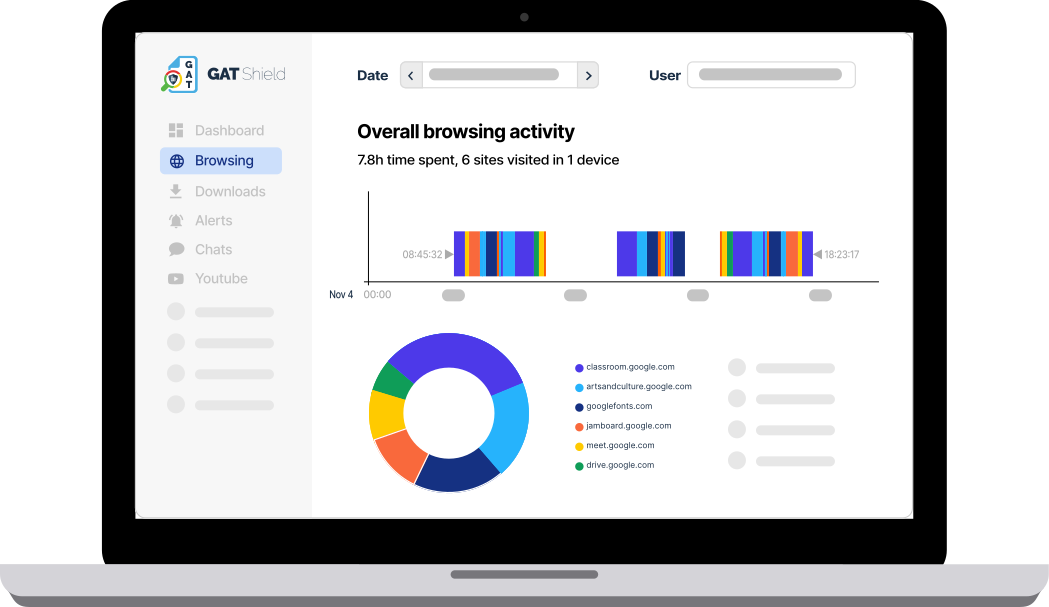
GAT Shield provides browser activity monitoring and DLP, while GAT Shield+ adds additional identity and security controls.
9. Verify Identity Beyond the Initial Login
Authentication verifies identity when someone signs in. But an authenticated browser session can continue long after that initial check.
Attackers can target OAuth consent, session theft, phishing, and weaker MFA methods. This raises another security question:
How do you know the person using an authenticated session is still the account owner?
GAT Shield+ ActiveID adds continuous identity verification during the browser session. It measures how a user types, not what they type, and compares that behavior with their established profile.
10. Turn Security Signals Into Action
Visibility matters when it leads to action.
If a sensitive file becomes externally accessible, you need to know who changed the permission and who now has access. If an OAuth app appears, you need to know who authorized it and what it can reach. If unusual browser activity occurs, your security team needs enough context to investigate.
The goal is a clear path:
Alert → Investigation → Decision → Response
For suspected account compromise, follow our Google Workspace account compromise investigation guide and Compromised Account Response Playbook.
Google Workspace Security Checklist
Use these 10 questions as a quick security review:
- Have you reviewed external Drive access and sensitive-file permissions?
- Are you monitoring suspicious Gmail activity and forwarding?
- Do you know where sensitive data is being shared?
- Are high-risk users using phishing-resistant authentication?
- Have you reviewed OAuth apps and third-party access?
- Are you monitoring unusual activity across Workspace?
- Is your offboarding process consistent?
- Are you reviewing devices, browsers, and extensions?
- Can you identify identity risks beyond login?
- Do your security alerts lead to a defined investigation and response?
FAQ
Is MFA enough to secure Google Workspace?
MFA significantly reduces the risk from stolen credentials, but it is one part of a broader security strategy. Admins should also review OAuth access, external sharing, browser activity, devices, and active sessions.
How do I check which third-party apps can access Google Workspace data?
In the Admin console, go to Security > Access and data control > API controls and open Manage App Access. GAT+ can provide additional domain-wide visibility into applications, scopes, and authorizing users.
What should a Google Workspace offboarding process include?
Review sessions and tokens, file ownership, Shared Drive and group access, email delegation and forwarding, OAuth access, licenses, devices, and administrative privileges.
Get More Visibility Across Google Workspace
Google Workspace gives admins a strong set of native security controls. As environments grow, investigating activity across users, files, applications, browsers, and permissions becomes more complex.
GAT Labs provides security, auditing, and automation tools built specifically for Google Workspace.
Who has access? What are they doing? Can you respond when something changes?
GAT Labs can show you.
Insights That Matter. In Your Inbox.
Join our newsletter for practical tips on managing, securing, and getting the most out of Google Workspace, designed with Admins and IT teams in mind.